Build interactive apps with Streamlit in Peliqan, for example to search data, make updates to data, data entry, data quality checks etc.
Streamlit is a wonderful low-code Python module to add UI components with a single line of code per component. Streamlit is built-in into Peliqan and available as the st module.
Contents
UI elements
Show data
# Show a title
st.title("My title")

# Show a text
st.text("My text")

# Show anything, e.g. a JSON object, string, DF...
st.write(my_data)

# Show a chart
st.line_chart(data)

# Load a table from Peliqan and show it as a table, JSON or DF
dbconn = pq.dbconnect('dw_123')
rows = dbconn.fetch('db_name', 'schema_name', 'table_name')

st.table(rows)
st.json(rows)
st.dataframe(rows)
Input elements
Button
button = st.button("Click me")
if button:
		# do stuff when button clicked
Dropdown (select)
option = st.selectbox("Please Choose", ["Email", "Home phone", "Mobile phone"])
st.write("You selected:", option)
Use a callback function to handle a selection:
def on_change():
    st.text(f"Selected option: %s" % st.session_state.my_selectbox)

st.selectbox("Please choose", ["A", "B", "C"], key = 'my_selectbox', on_change = on_change)
Save selection in Peliqan state and load from state on each run:
options = ["Option 1", "Option 2", "Option 3"]
selected_option = pq.get_state()

index = None
if selected_option:
	for i, option in enumerate(options):
	    if selected_option == option:
	        index = i

def on_change():
    st.text(f"Selected option: %s" % st.session_state.my_selectbox)
    pq.get_state(st.session_state.my_selectbox)

st.text(f"Index: %s" % index)
st.selectbox("Please choose", options, index = index, key = 'my_selectbox', on_change = on_change)
Interactive grid with ability to update data
from st_aggrid import AgGrid, GridOptionsBuilder

dbconn = pq.dbconnect(pq.DW_NAME)
df = dbconn.fetch(pq.DW_NAME, 'crm', 'companies', df=True)

gb = GridOptionsBuilder.from_dataframe(df)
gb.configure_selection('single')
gridOptions = gb.build()

grid_response = AgGrid(
  df,
  gridOptions=gridOptions,
  update_mode="SELECTION_CHANGED")
selected = grid_response['selected_rows']

if len(selected):
  st.write("Selected company id: %s" % selected[0]["id"])
  new_country = st.text_input("Edit country", selected[0]["country"])

  if st.button('Update company'):
    pq.update_cell(
			table_name = "companies",
			field_name = "country",
			row_id = selected[0]["id"], # must be value from primary key column
			value = new_country)
    st.write("Company updated ! New country: %s" % new_country)
Upload file & show file (from base64)
import base64

uploaded_file = st.file_uploader("Upload PDF file", accept_multiple_files=False, type=['pdf'])

if uploaded_file is not None:
    file_contents = uploaded_file.read()

    file_base64 = base64.b64encode(file_contents).decode('utf-8')
    html_show_file = f"""<embed src="data:application/pdf;base64,{file_base64}" type="application/pdf" width="100%" height="600px" />"""
    st.markdown(html_show_file, unsafe_allow_html = True)
Manage layout of a full-fledged app UI
Embedded Portal / Market place
Use Streamlit to build a market place or portal, which can be embedded in your existing SaaS platform:
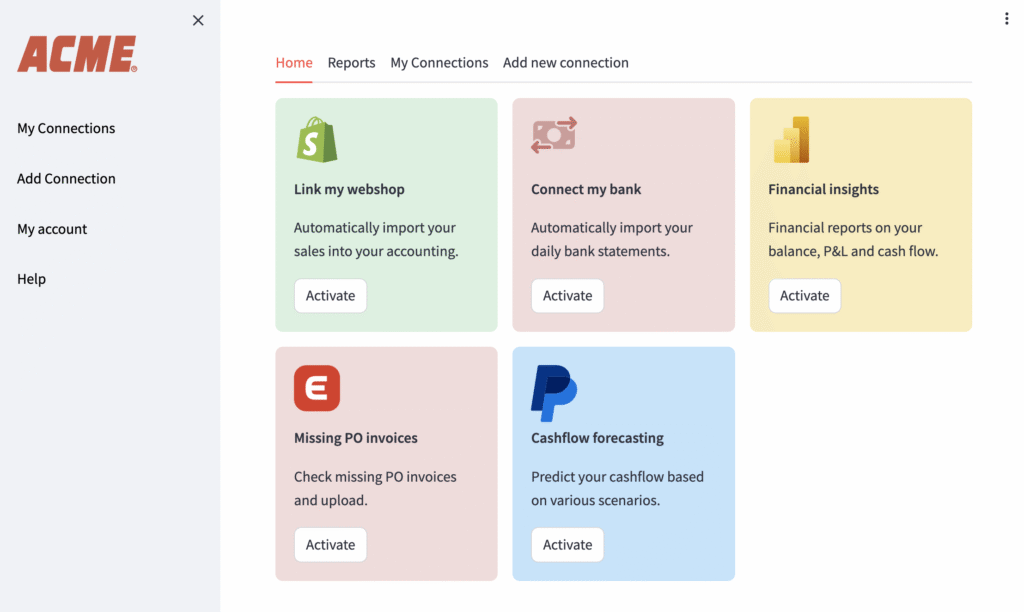
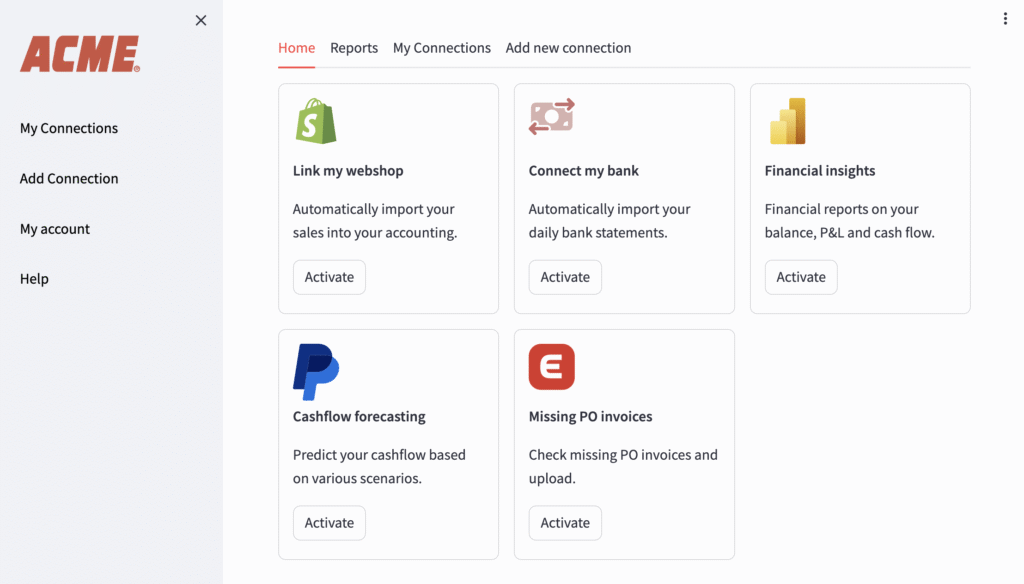
View example code of the above market place (portal) with tiles
import requests, json
from streamlit_extras.stylable_container import stylable_container

JWT = 'eyJ0eXAiOiJKV1QiLCJhbGciOiJIUzI1NiJ9.eyJ1c2VybmFtZSI6Im5pa29AcGVsaXFhbi5pbyIsImlhdCI6MTY4NTcwMTEzNSwiZXhwIjoyNTQ5NjE0NzM1LCJqdGkiOiI2YzA3MjUxMi1iNzRiLTRmYmQtOWU4ZC0xZDAyNDA2M2E4YjIiLCJ1c2VyX2lkIjoyLCJ1c2VyX3Byb2ZpbGVfaWQiOlsyXSwib3JpZ19pYXQiOjE2ODU3MDExMzUsInRva2VuX25hbWUiOiJnZW5lcmF0ZWRfYnlfdXNlciJ9.2XLuZBsfNvUyc8HrQiwtNx0nxSvnweTE3V5y-IhqbjU'

products = [
    {
        "name": "Link my webshop",
        "description": "Automatically import your sales into your accounting.",
        "icon": "https://app.eu.peliqan.io/img/db/shopify.svg",
        "color": "#daf1e0"
    },
    {
        "name": "Connect my bank",
        "description": "Automatically import your daily bank statements.",
        "icon": "https://app.eu.peliqan.io/img/db/gocardless.svg",
        "color": "#f1dbda"
    },
    {
        "name": "Financial insights",
        "description": "Financial reports on your balance, P&L and cash flow.",
        "icon": "https://app.eu.peliqan.io/img/db/shared/powerbi.svg",
        "color": "#f9edbd"
    },
    {
        "name": "Missing PO invoices",
        "description": "Check missing PO invoices and upload PDF documents.",
        "icon": "https://app.eu.peliqan.io/img/db/exactonline.svg",
        "color": "#f1dbda"
    },
    {
        "name": "Cashflow forecasting",
        "description": "Predict your cashflow based on various scenarios.",
        "icon": "https://app.eu.peliqan.io/img/db/paypal.svg",
        "color": "#c3e3fa"
    }
]

activate_buttons = []
def show_home():
    global activate_buttons
    col_count = 3
    cols = st.columns(col_count)
    css_product_bg_colors = ""
    for i, product in enumerate(products):
        with cols[i % col_count]:
            #with st.container(height=250):
            #    st.image(product['icon'], width = 50)
            #    st.write('**' + product['name'] + '**')
            #    st.write(product['description'])
            #    st.button('Activate', key = f"home_activate_button_%s" % i)

            with stylable_container(
                key = f"product_container_%s" % i,
                css_styles = """
                {
                    background-color: """ + product['color'] + """;
                    border-radius: 0.5rem;
                    padding: 20px !important;
                    height: 250px;
                }
                .stMarkdown {
                    width: 80% !important;
                }
                """):
                st.image(product['icon'], width = 50)
                st.write('**' + product['name'] + '**')
                st.write(product['description'])
                activate_buttons.append(st.button('Activate', key = f"home_activate_button_%s" % i))


def show_reports():
    st.write("Add a reporting service on the Home screen first.")

def get_dw_id():
    dbs = pq.list_databases()
    for db in dbs:
        if db.get('server').get('target_type') == 'PELIQAN_SHARED':
            return db['server']['id']

def list_connections():
    # todo replace with pq.list_connections()
    url = "https://app.eu.peliqan.io/api/servers"
    headers = {
        "Authorization": "JWT " + JWT
    }
    response = requests.get(url, headers = headers)
    return json.loads(response.content)

def show_connections():
    cols = st.columns(3)
    connections = list_connections()
    for i, connection in enumerate(connections):
        with cols[i % 3]:
            with st.container(height = 200):
                st.image('https://app.eu.peliqan.io/img/db/connector-fallback.svg', width = 50)
                st.text(connection['name'])


# Not used, requires implementation of connect form in Streamlit app
def add_connection():
    dw_id = get_dw_id()
    group_id = 27 # todo pq.list_groups()
    connector_id = 33 # todo pq.list_connectors()

    # todo replace with pq.add_connection()
    url = f"https://app.eu.peliqan.io/api/servers/group/%s/" % group_id
    data = {
        "name": "New connection",
        "server_definition_id": connector_id,
        "param1": "xxx",
        "param2": "xxx",
        "password": "xxx",
        "group": group_id,
        "selected_tables": {
            "tables": "__all__"
        },
        "target_id": dw_id
    }
    headers = {
        "Authorization": "JWT " + JWT
    }
    result = requests.post(url, data = data, headers = headers)
    if result.status_code == 200 or result.status_code == 204:
        st.write("Connection added.")

def send_invite(email):
    # todo replace with pq.send_connection_invite()
    url = "https://app.eu.peliqan.io/api/servers/invite/"
    data = {
        "recipient": email,
        "subject": "Add connection in Peliqan",
        "message": "Please click the link below to complete your connection.",
        "confirmationRecipient": "no-reply@peliqan.io",
        "serverType": "chargebee",
        "adapterName": "tap-peliqan",
        "connectorName": "SINGER"
    }
    headers = {
        "Authorization": "JWT " + JWT
    }
    result = requests.post(url, data = data, headers = headers)
    if result.status_code == 200 or result.status_code == 204:
        st.write("Email sent, make sure to check your spam folder. Return here after adding the connection.")


with st.sidebar:
    st.markdown("""
        <img src='https://1000logos.net/wp-content/uploads/2021/04/ACME-logo.png' style='width: 150px; margin-top: -100px; margin-left: -10px;'/>
        """, unsafe_allow_html=True)

    st.button("My Connections", type="primary")
    st.button("Add Connection", type="primary")
    st.button("My account", type="primary")
    st.button("Help", type="primary")

st.markdown(
    """
    <style>
        [data-testid="stSidebar"] {
            width: 150px !important;
        }
        p {
            font-size: 16px !important;
        }
        .block-container, .st-emotion-cache-13ln4jf {
            width: 90% !important;
            max-width: 100% !important;
            margin-top: 10px !important;
            padding-top: 50px !important;
        }
        [data-testid="stImage"] {
            height: 50px !important;
        }
        button[kind="primary"] {
            background: none!important;
            border: none;
            padding: 0!important;
            color: black !important;
            text-decoration: none;
            cursor: pointer;
            border: none !important;
        }
        button[kind="primary"]:hover {
            text-decoration: none;
            color: black !important;
        }
        button[kind="primary"]:focus {
            outline: none !important;
            box-shadow: none !important;
            color: black !important;
        }
    </style>
    """,
    unsafe_allow_html=True,
)

tab_home, tab_reports, tab_connections, tab_add_connection = st.tabs(["Home", "Reports", "My Connections", "Add new connection"])

with tab_home:
    show_home()

    for i, product in enumerate(products):
        if activate_buttons[i]:
            st.write(f"Thank you, we will activate %s !" % products[i]["name"])

with tab_reports:
    show_reports()

with tab_connections:
    show_connections()

with tab_add_connection:
    st.write("Please enter your email address. You will receive an email to add a connection. Once the connection is added, return here and refresh to see your new connection.")

    select_connector = st.selectbox(
        "Select a connector to add",
        ("Exact Online", "Shopify", "Microsoft Dynamics", "Odoo", "Bank statements"))

    email = st.text_input("Email")
    if email:
        send_invite(email)
Business application or widget
Use Streamlit to build a business application or widget:
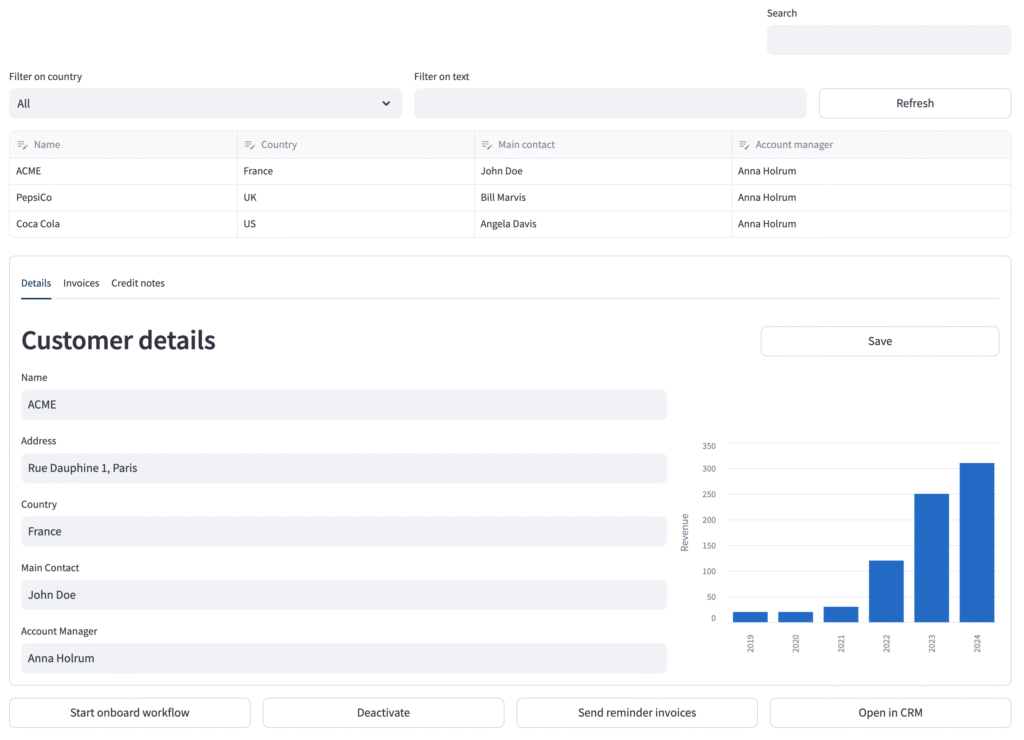
View example code using a Streamlit grid and containers
# https://arnaudmiribel.github.io/streamlit-extras/extras/grid/
from streamlit_extras.grid import grid

customer_list = [
    {"Name": "ACME",      "Country": "France", "Main contact": "John Doe",     "Account manager": "Anna Holrum"},
    {"Name": "PepsiCo",   "Country": "UK",     "Main contact": "Bill Marvis",  "Account manager": "Anna Holrum"},
    {"Name": "Coca Cola", "Country": "US",     "Main contact": "Angela Davis", "Account manager": "Anna Holrum"}
]

st.markdown(
    """
    <style>
        .block-container {
            width: 100% !important;
            padding: 20px !important;
            max-width: 100% !important;
        }
        header {
            display: none !important;
        }
    </style>
    """,
    unsafe_allow_html=True
)

main_grid = grid([3, 1], [2, 2, 1], 1, 1, [1, 1, 1, 1], vertical_align="bottom")

# Grid row 1
main_grid.text("")
main_grid.text_input("Search", key = "search")

# Grid row 2
main_grid.selectbox("Filter on country", ["All", "EU", "UK", "USA"])
main_grid.text_input("Filter on text")
main_grid.button("Refresh", use_container_width=True)

# Grid row 3
#main_grid.table(customer_list)
main_grid.data_editor(customer_list, use_container_width=True)

# Grid row 4
details_container = main_grid.container(border=True)

# Grid row 5
main_grid.button("Start onboard workflow", use_container_width=True)
main_grid.button("Deactivate", use_container_width=True)
main_grid.button("Send reminder invoices", use_container_width=True)
main_grid.button("Open in CRM", use_container_width=True)

with details_container:
    tab_details, tab_invoices, tab_creditnotes = st.tabs(["Details", "Invoices", "Credit notes"])

    with tab_details:
        insidetab_grid = grid([3, 1], [2, 1], vertical_align="bottom")
        insidetab_grid.header("Customer details")
        insidetab_grid.button("Save", use_container_width=True)

        editfields_container = insidetab_grid.container(border=False)
        with editfields_container:
            st.text_input("Name",            "ACME",                  key = "company_details_name")
            st.text_input("Address",         "Rue Dauphine 1, Paris", key = "company_details_address")
            st.text_input("Country",         "France",                key = "company_details_country")
            st.text_input("Main Contact",    "John Doe",              key = "company_details_contact")
            st.text_input("Account Manager", "Anna Holrum",           key = "company_details_accountmanager")

        chart_data = {"2019": 20, "2020": 20, "2021": 30, "2022": 120, "2023": 250, "2024": 310}
        editfields_container = insidetab_grid.bar_chart(chart_data, height = 300, y_label = "Revenue")

    with tab_invoices:
        st.header("Customer invoices")
        st.text("Nothing found")
    with tab_creditnotes:
        st.header("Customer credit notes")
        st.text("Nothing found")
Layout tips & tricks
Hide top header (with action menu and “Run” animation):
st.markdown(
    """
    <style>
        header {
            display: none !important;
        }
    </style>
    """,
    unsafe_allow_html=True
)
Make UI full width:
st.markdown(
    """
    <style>
        .block-container {
            width: 100% !important;
            padding: 20px !important;
            max-width: 100% !important;
        }
    </style>
    """,
    unsafe_allow_html=True
)