
Help on how to connect your Zoho CRM to UbuntuFabric
Step by step guide
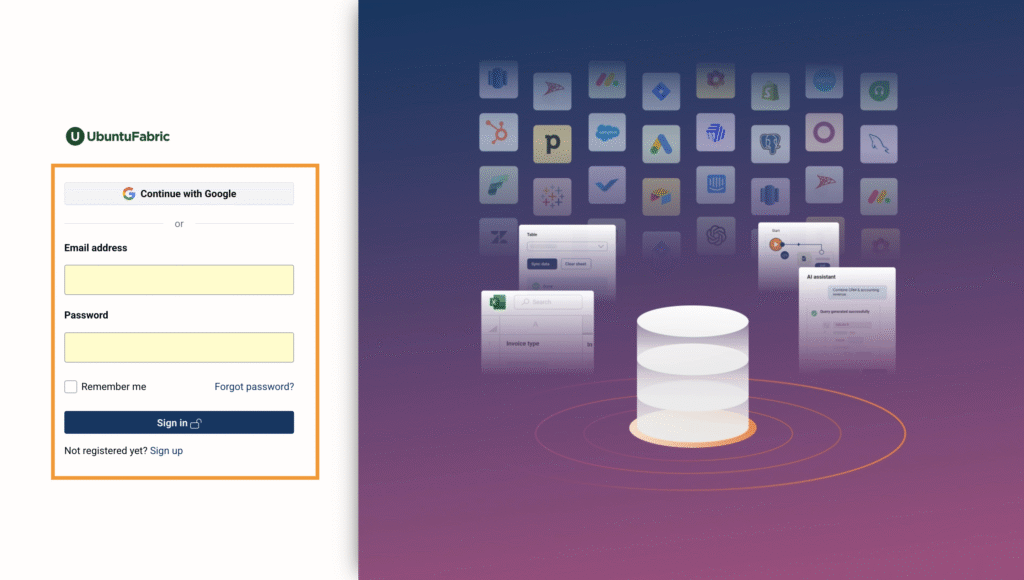
Step 1: Access your UbuntuFabric account, by going to app.ubuntufabric.io eneter your email address and password. These are the details you setup when creating your UbuntuFabric account.
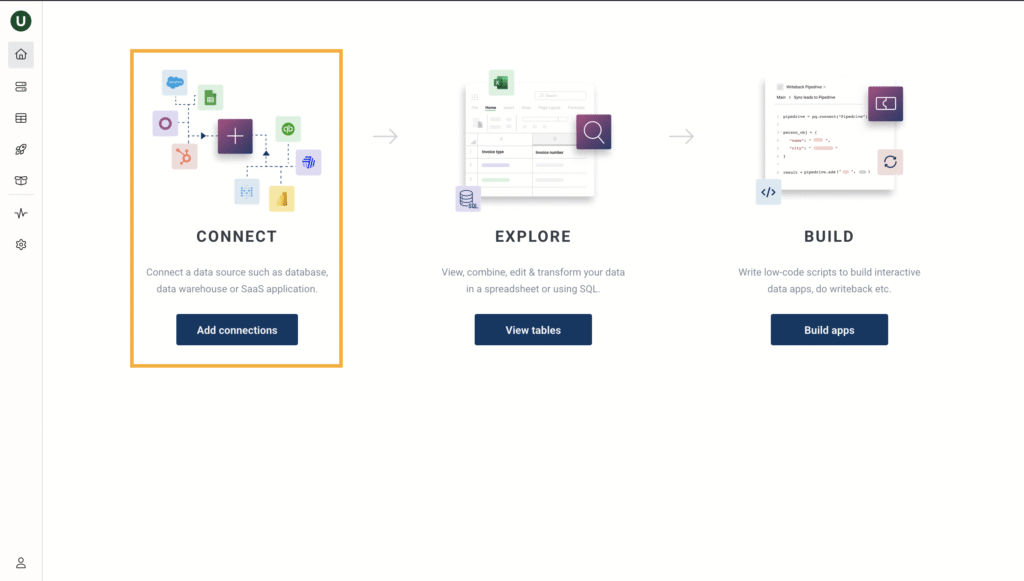
Step 2: Once you have signed into your UbuntuFabric account, click on “Add Connections” under “Connect” on your landing dashboard.
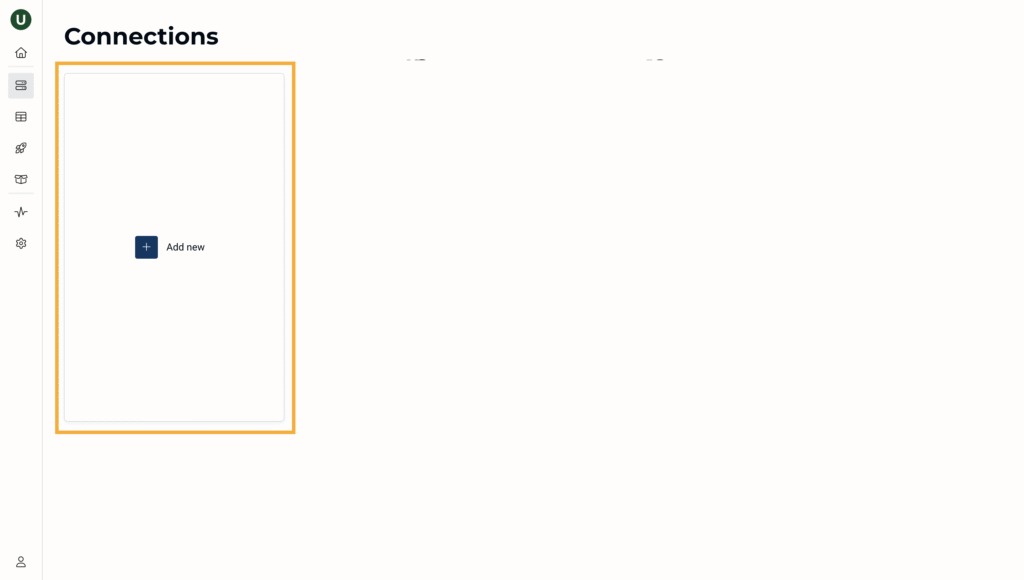
Step 3: The connections page will open and you must click on “Add new”.
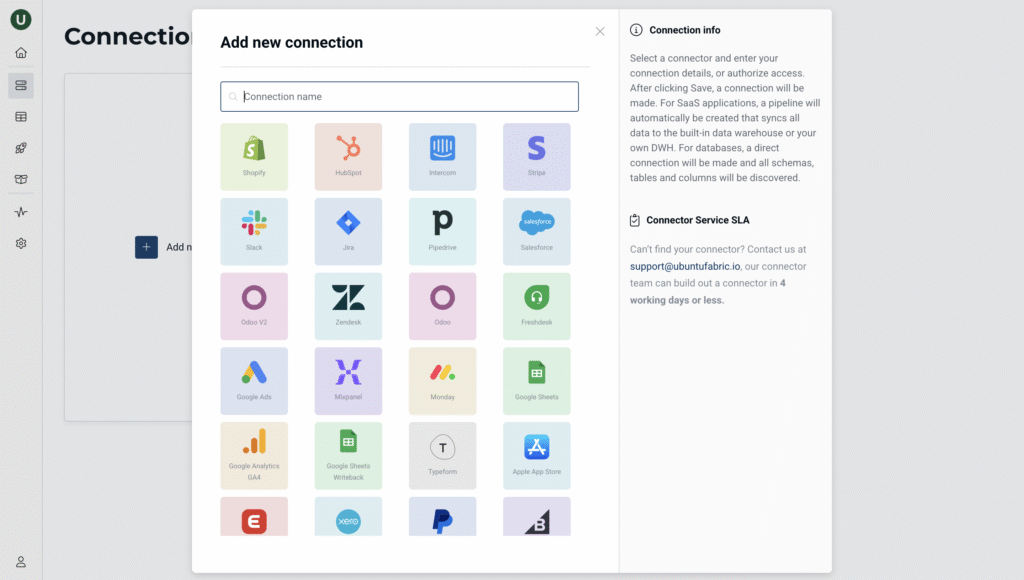
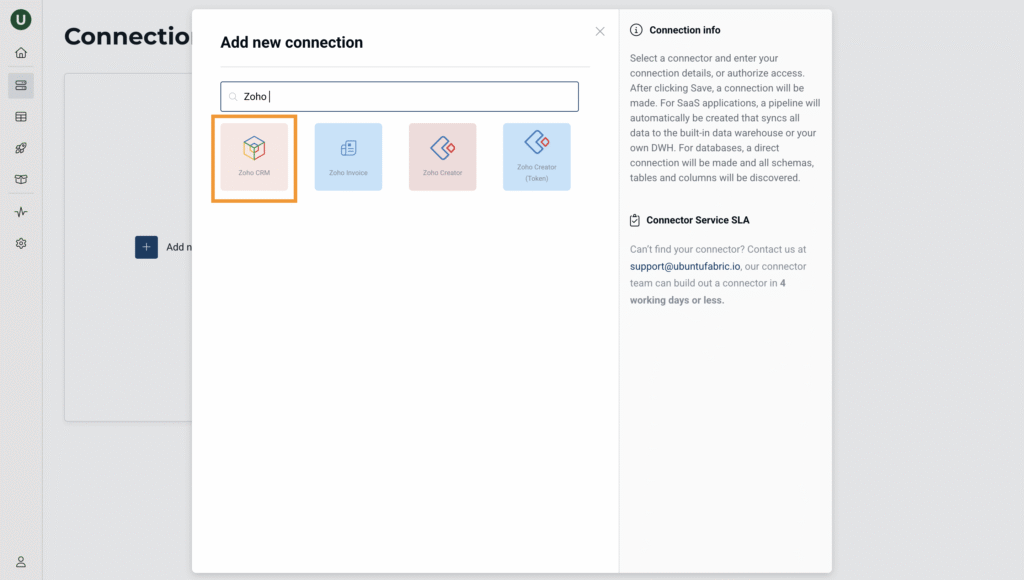
Step 4: A list of available connectors on UbuntuFabric will display on the screen, and you type “Zoho CRM” in the search bar.
Step 5: On the Zoho CRM configuration settings screen, fill in: Connection Name: This can be any name you want to use to identify the Zoho CRM connection, you can leave this as the default. Start Date: Enter the start date for your connector. Domain: In the drop down, select the tld of your Zoho CRM instance (.in, .com, .eu, .jp, .com.au).
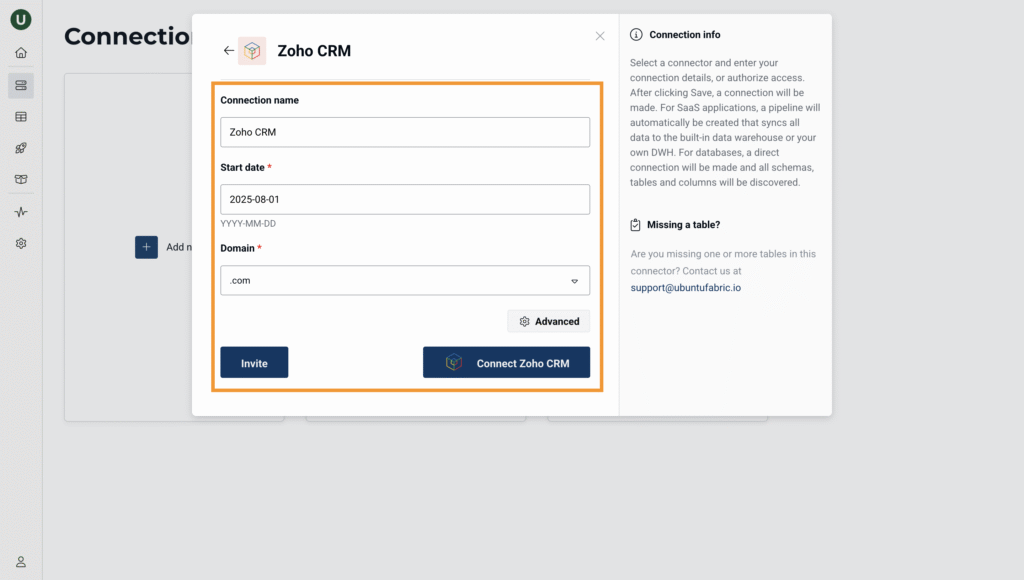
Once you have specifed the details you can proceed and click “Connect Zoho CRM”.
Step 6: The Zoho CRM authorization page will appear prompting you that Peliqan_Zo_CRM would like to access your CRM information.
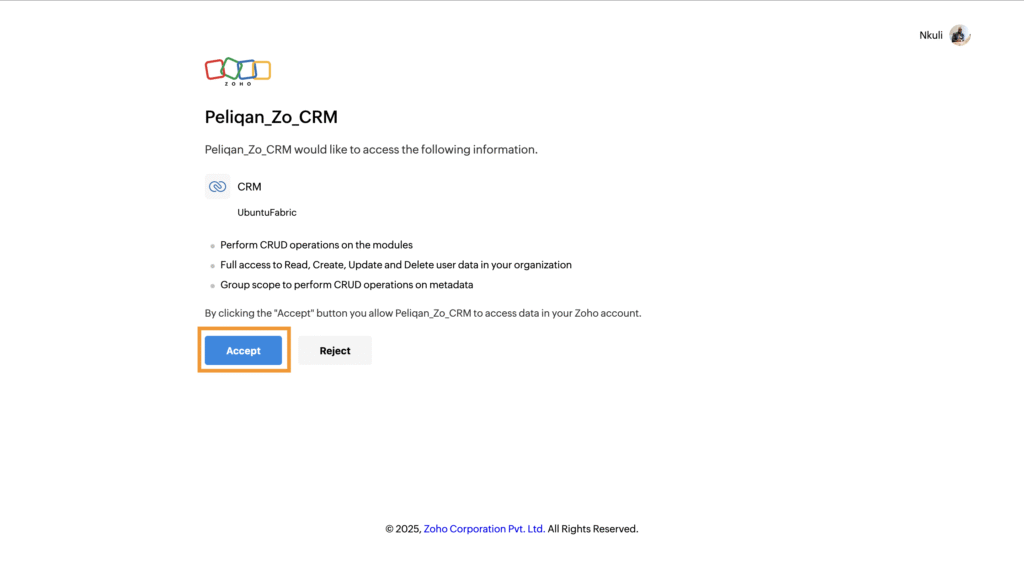
Click accept to give UbuntuFabric permission to access your Zoho CRM data, once you have accepted and the authorization is complete, a success message will be displayed confirming that UbuntuFabric now has access to your Zoho CRM.
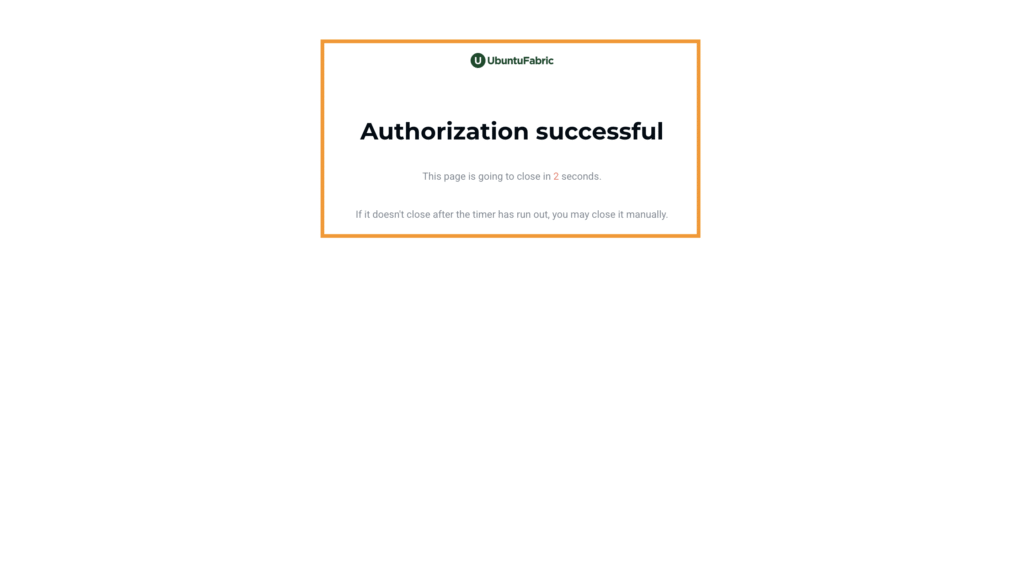
And you will be redirected back to the Connections screen in UbuntuFabric, where your Zoho CRM connection will now be visible.
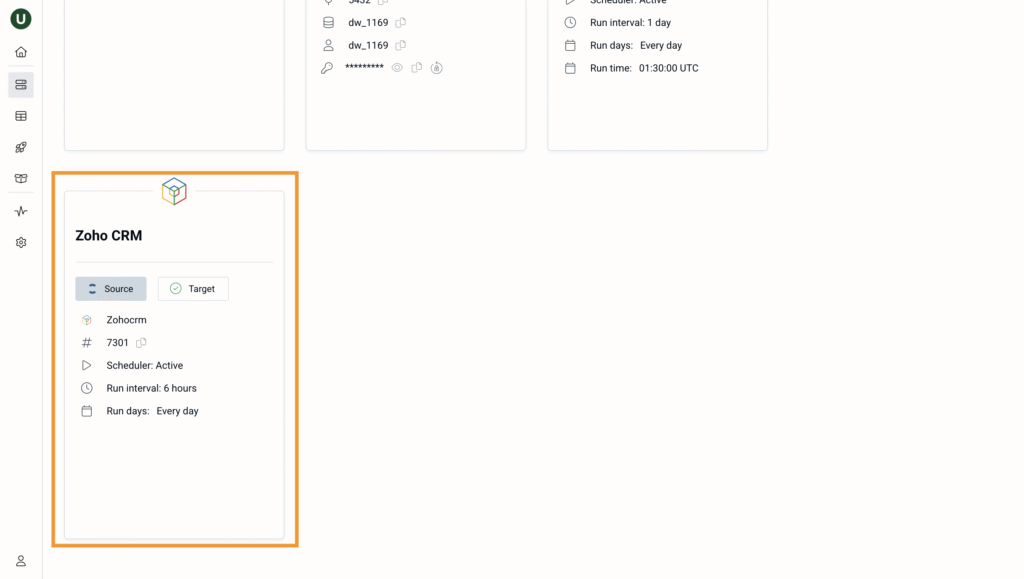
Step 7: Once your connection has completed syncing your Zoho CRM data with UbuntuFabric you will receive pop up messages confirming that the data sync is complete and that your connector is now ready to use.
Now when you hover your mouse over your connection’s name, you will be able to access more configurable settings for your connector.
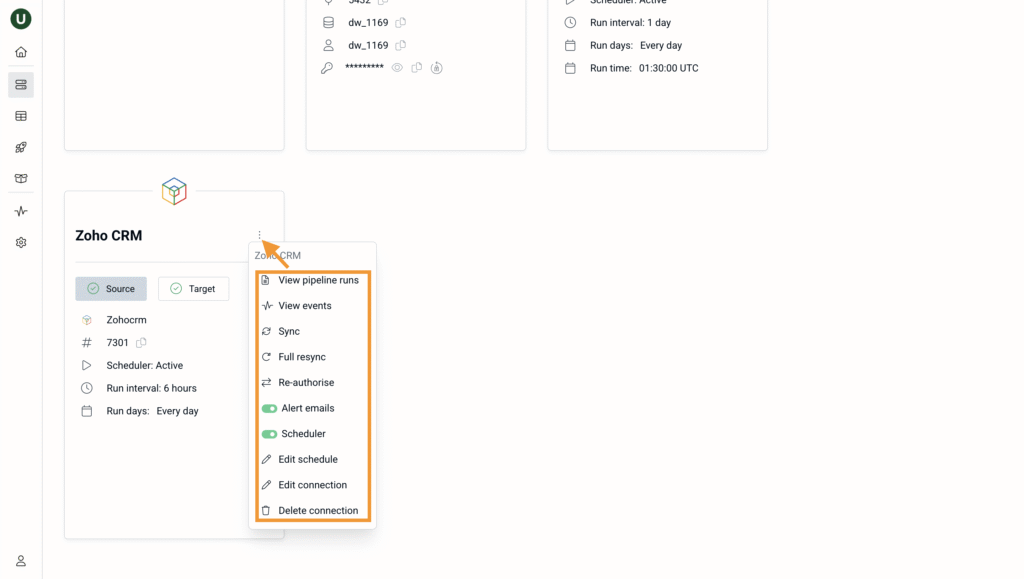
Now you have successfully connected your Zoho CRM to your UbuntuFabric account and you can now set a target destination for your Zoho CRM data, view your pipeline runs, set a schedule for synicng your Zoho CRM data, manually trigger a sync and manage alerts.
Should you require any addition assistance, please reach out to us to via support@ubuntufabric.io and our team will assist.