You can build data apps using UbuntuFabric’s low-code Python scripts. You can write, test and run your scripts inside UbuntuFabric, or you can use your own IDE such as Visual Studio.
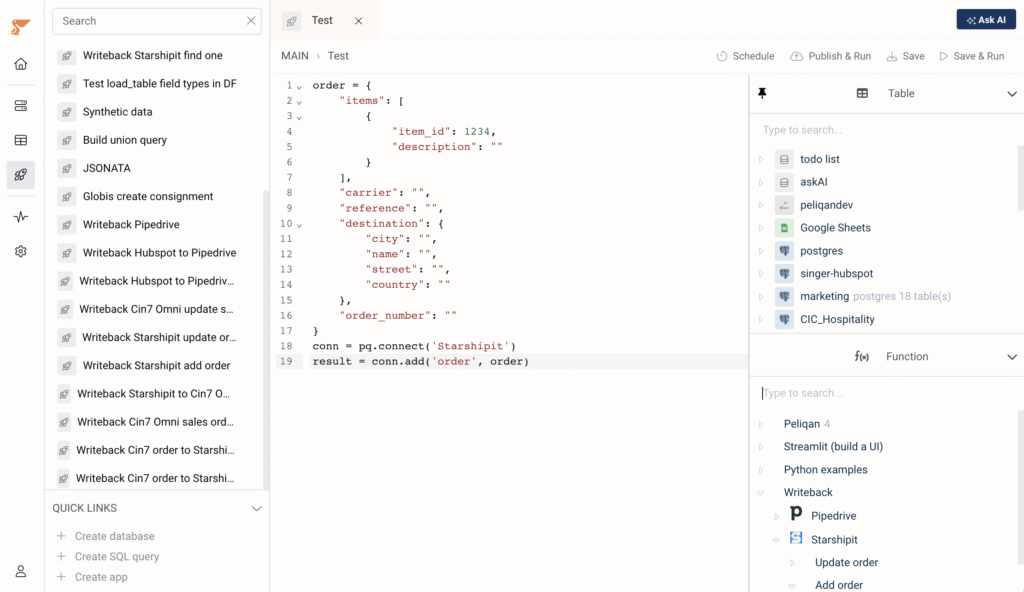
In UbuntuFabric, go to “Build” and click on Create app. You can now start writing your Python script. Use the right pane to insert code examples and snippets. Click on “Save & Run” to run your Python script:
More info on running scripts:
Using the pq and st modules
Following two main modules are automatically imported in every Python script in UbuntuFabric:
pqmodule: to access built-in UbuntuFabric functionsstmodule (Streamlit): to show output, visualise data and to add UI elements such as buttons, input fields etc.
Building a UI
UbuntuFabric uses Streamlit as the front-end for your Python scripts, available as the st module (no import needed). Do not use print() in your scripts, instead use st.write(). Example:
st.write("Hello there")
More examples using Streamlit:
st.title("My title")
st.text("My text")
st.line_chart(data)

dbconn = pq.dbconnect(pq.DW_NAME)
rows = dbconn.fetch('db_name', 'schema_name', 'table_name')

st.table(rows)
st.json(rows)
st.dataframe(rows)
More info:
Reading data from a table
You can load data from any table into your Python code:
# Open a connection to the UbuntuFabric data warehouse
dbconn = pq.dbconnect(pq.DW_NAME) # See your DW name under My Connections

# Read the rows from the table
rows = dbconn.fetch('db_name', 'schema_name', 'table_name')
More info:
Writing to tables
Here are basic examples of updating data in tables:
# Open a connection to the UbuntuFabric data warehouse
dbconn = pq.dbconnect(pq.DW_NAME)

# Insert a row in a table
dbconn.insert('db_name', 'schema_name', 'table_name', record_dict)
More info: